You’ve probably said it before: “I want an AI assistant my clients can just message.” Then you opened a tutorial, saw a wall of code, and closed the tab. Another unfinished project.
Here’s the part nobody tells you clearly enough: connecting an AI agent to Telegram is a two-part job, and neither part requires writing code. First you grab a bot token from Telegram (a two-minute chat with a bot called BotFather). Then you paste that token into a no-code tool like n8n and connect an AI step. That’s the whole architecture. By the end of this article you’ll have a bot that exists, responds, and is genuinely useful — today.
TL;DR: Create a bot with BotFather, copy the token it gives you, paste that token into your no-code tool’s Telegram trigger node, and let an AI step send the reply. No code, 15–30 minutes, and your AI Employee is live on Telegram.
How do I connect an AI agent to Telegram?
Connecting an AI agent to Telegram means wiring three moving parts together: a bot account (created in BotFather), a token (the password that links that bot to your automation tool), and a no-code workflow (like n8n) that holds your AI step.
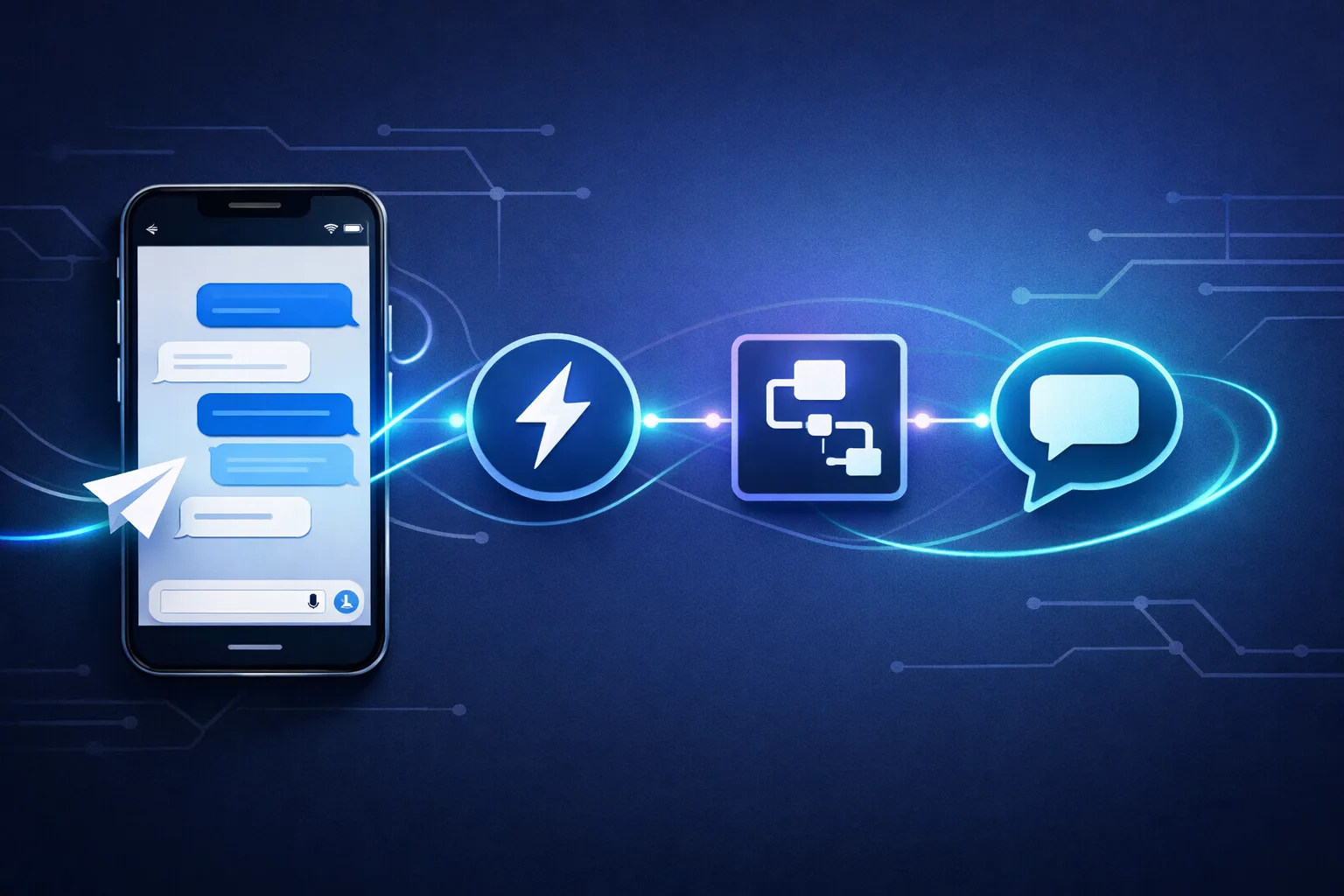
The flow is simple: a user sends a message to your bot → Telegram forwards it to your tool via a webhook → your workflow runs the message through an AI node → the AI’s reply is sent back to the chat. You never touch Telegram’s API directly; the no-code tool handles the handshake for you.
In n8n specifically, this is a Telegram Trigger node followed by an AI node (like an AI Agent or a basic LLM node), followed by a Telegram “Send Message” node. The trigger listens, the AI thinks, and the send node replies — all drawn as boxes connected by lines. If your customers live on WhatsApp instead, the same three-node pattern applies there too — see our AI Agent WhatsApp Integration guide for the messaging-platform playbook that sits above this one.
Can I build a Telegram AI bot without code?
Yes. The entire pipeline — trigger, AI reasoning, and reply — is assembled from visual nodes, not typed syntax.
The only genuinely technical moment is the token-and-webhook handshake, and even that is a ten-minute step: paste the token into the trigger node’s credential field, save, and the tool registers the webhook for you. If you’re running n8n locally, you’ll also need a tunnel (like ngrok or localtunnel) so Telegram can reach your machine — but that’s a copy-paste command, not code you write.
The wall you’re afraid of isn’t a coding wall. It’s a configuration wall, and it’s short. The same webhook mechanics show up across every integration you’ll build, so once you clear the handshake here, you’ve learned the pattern behind webhook and API integration for AI Employees generally.
How do I get a Telegram bot token?
The token is a long string that authenticates your bot (not your personal account) to Telegram’s API. You get it by chatting with BotFather, Telegram’s official bot-management bot.
- Open Telegram on your phone, desktop, or web.
- Search for @BotFather and pick the account with the blue verified checkmark — fake accounts exist, so skip anything without the badge.
- Send
/newbotto start the creation flow. - Name your bot — this is the friendly display name (e.g., “Acme AI Assistant”). It doesn’t need to be unique.
- Choose a username that ends in “bot” (e.g.,
acmeassistant_bot). This one must be unique and can only use English letters, numbers, and underscores. - Copy the token BotFather sends back. Treat it like a password — anyone with it controls your bot. Paste it into your automation tool’s credential field.
If you ever lose the token or suspect it leaked, return to BotFather and use /revoke to generate a fresh one instantly.
How do I make my Telegram bot reply automatically?
The workflow is a three-node chain, and the reply logic lives entirely in the middle node:
- Telegram Trigger — listens for incoming messages. Create a credential, paste your token, save, and note the webhook URL it generates.
- AI node — the “employee.” Drop in an AI Agent node (or a basic LLM node for simple Q&A), connect your model, and give it a system prompt describing the job it should do. This is where the actual intelligence happens.
- Telegram “Send Message” node — replies to the user. Set the Chat ID to
={{ $json["message"]["chat"]["id"] }}so it answers the right conversation, and set the text to the AI node’s output.
Run the workflow, send your bot a test message, and watch the reply come back through the chain. The first message that works is the moment the “can I actually do this?” question answers itself.
Real ways to put this to work
Once the chain runs, the bot is a channel, not a tool — the value comes from what you teach the AI to do. A few places this pays off fast:
- Client intake — a bot that asks a prospect the right questions and hands you a clean summary in the morning.
- FAQ triage — an AI Employee that answers the same “how much?” and “what’s included?” questions so you don’t.
- Lead capture — the AI qualifies a lead in-chat, then dumps the details into your CRM or a spreadsheet via a fourth node.
- Internal alerts — your automation pings you on Telegram when a form is filled or a payment lands.
The pattern is always the same: Telegram in, AI in the middle, your business systems out. If your community hangs out in a server rather than a chat, the identical logic powers an AI Employee built for Discord — same trigger, same AI node, different platform.
The honest limits
Two things worth knowing before you promise a production bot:
Local vs. hosted matters. If n8n runs on your laptop, the bot dies when the laptop sleeps. For a bot that has to be reliably reachable, run n8n on a cloud host or use n8n Cloud — the tunnel approach is for testing, not for something clients depend on.
One webhook per bot. A bot can only point at one webhook at a time. If you get a “409 Conflict” error, another workflow is already holding the bot’s webhook — delete or deactivate the other trigger and it resolves.
None of this is a reason to stop. It’s just the difference between a demo and a dependable assistant. And once the bot is live, you’ll want it talking to the rest of your stack — the trigger-to-action loop is the same one you’ll use to connect your AI Employee to thousands of apps via Zapier.
The next 30 minutes
You now know the entire path: BotFather for the token, a no-code tool for the workflow, and a three-node chain that turns messages into AI replies. The only thing standing between you and a working bot is doing the ten-minute handshake once.
Ready to put this to work? I teach business owners how to hire their first AI employee, step by step: Get the free AI Employee guide
About the Author
Anthony Odole is a former IBM Senior Managing Consultant, where he served as Enterprise Architect on Fortune 500 engagements, and the founder of AIToken Labs. He helps business owners cut through AI hype by focusing on practical systems that solve real operational problems.
His flagship platform, EmployAIQ, is an AI Workforce platform that enables businesses to design, train, and deploy AI Employees — AI agents that function as digital workforce members — that perform real work without adding headcount.