Customer support is the first place most solo operators feel the ceiling. You hit the point where the same ten questions eat your morning, real issues wait behind “where’s my order,” and every “just hire someone” conversation stalls on cost. You’ve probably started building a fix four times and shipped none of them.
Here’s the thing worth sitting with: you don’t need a dev team, and you don’t need to write a line of code. n8n lets you wire an AI agent together visually — a support “employee” that reads the ticket, finds the answer in your docs, and either replies or escalates to you. This article walks you through building exactly that, end to end.
TL;DR: Build an n8n AI agent that reads incoming support tickets, grounds its answers in your knowledge base, and escalates to you when it isn’t sure — no code, using the AI Agent node, a vector store, and human-in-the-loop approval.
What Does an n8n Customer Support Agent Actually Do?
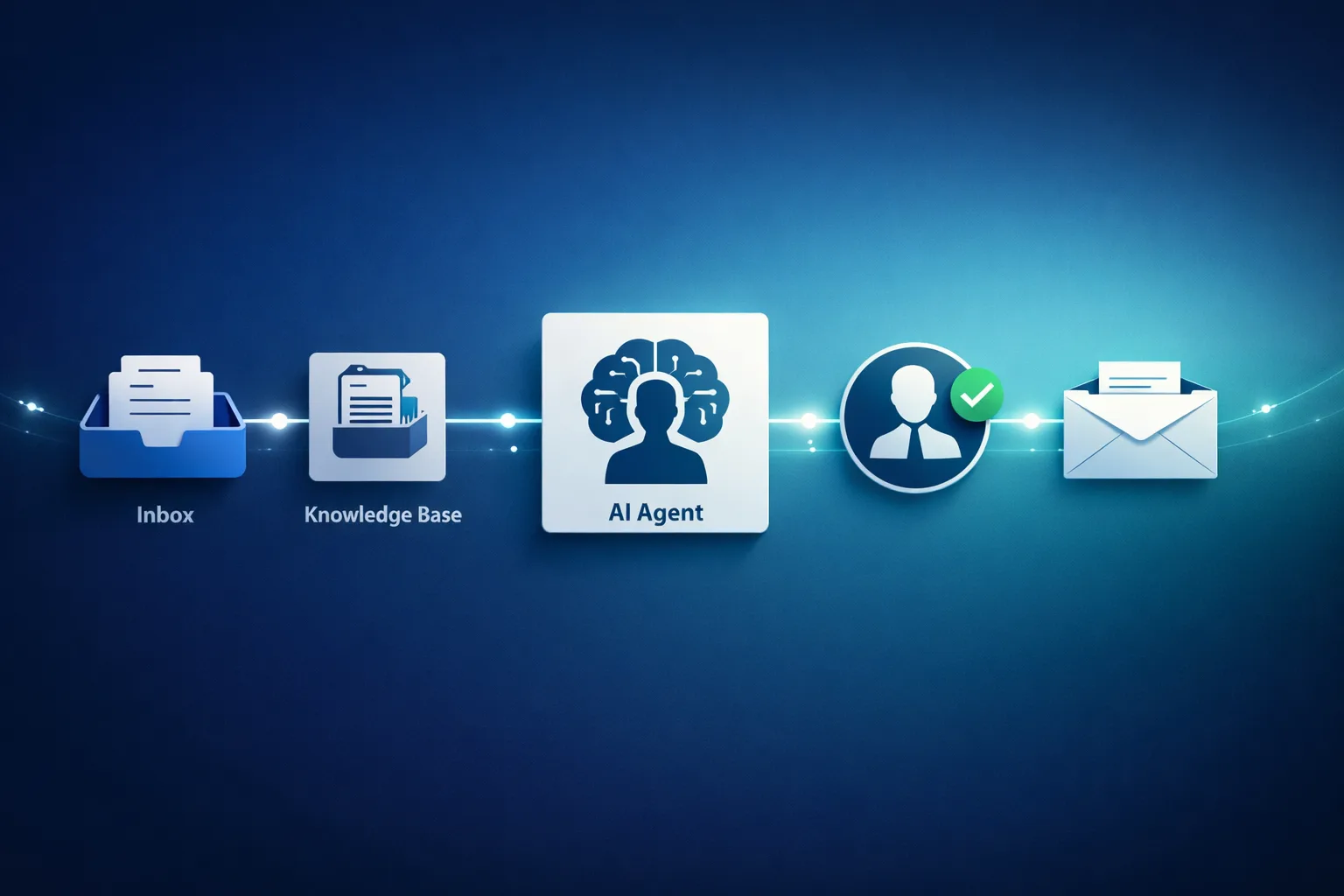
An n8n support agent is a workflow that sits between your helpdesk inbox and your customer. When a ticket lands, the workflow triggers, the AI agent reads it, looks up the answer in your help docs or FAQ, and drafts a reply. Then — and this is the part most tutorials skip — it either sends the reply automatically or routes it to you for a one-click approval first.
The result isn’t a chatbot that parrots a canned answer. It’s an agent that can look things up before it responds: your return policy, a customer’s order status, your actual documentation. That retrieval step is what separates a support agent that resolves tickets from a FAQ widget that just moves the problem around.
The pattern breaks into four moves:
- Trigger — a new ticket arrives (helpdesk webhook, email, or form)
- Understand — the AI agent classifies intent and decides what it needs
- Retrieve — it pulls grounded info from your knowledge base or systems
- Respond or escalate — it drafts a reply, and either sends or waits for your approval
What Do You Need Before You Start?
You don’t need much, but you need these four pieces in place before the workflow will do anything useful:
- An n8n instance — cloud or self-hosted; the community (free) tier is enough to start
- An LLM credential — OpenAI, Anthropic Claude, or Google Gemini, whichever you already pay for
- A knowledge base — a few help docs, an FAQ, or even a well-kept Notion/Google Doc you can point the agent at
- An inbox — a helpdesk like Zendesk or Freshdesk, a shared Gmail, or a Slack channel
The knowledge base is the one people skip, and it’s the one that determines whether your agent is actually useful. An agent with no source of truth is just a confident guesser. That’s how you get a support bot confidently refunding the wrong order.
If this is your very first n8n build, I’d suggest starting with the fundamentals first — here’s the complete walkthrough on how to build your first AI agent with n8n. It covers the canvas, the AI Agent node, and the anatomy of a workflow, so the steps below make immediate sense.
How Do You Build the Workflow, Step by Step?
Step 1: Set Up the Trigger
The trigger is whatever fires the workflow when a customer reaches out. The most common choices:
- A helpdesk webhook — Zendesk, Freshdesk, and Intercom can all POST new-ticket events to an n8n Webhook node
- An Email Trigger (IMAP) — point n8n at a shared support inbox and it fires on every new message
- A Form Trigger — n8n’s native form, good for a simple contact-us page
Start with a Webhook node if you use a real helpdesk, or Email Trigger if you’re a solo operator working straight from a Gmail inbox. Don’t overthink this — you can swap triggers later without rebuilding the agent.
Step 2: Add the AI Agent Node
This is the heart of the build. Drag in the AI Agent node and connect your LLM as its model. The node’s whole job is to decide, step by step, which tools to call to answer the customer.
Your system prompt is where you define the employee. Write it like a job description, not a vague instruction:
“You are the first-line support agent for [Business]. You answer customer questions about orders, shipping, returns, and billing using only the information in your tools. If a question is outside what you can verify, or a customer is angry, upset, or requesting a refund over $50, escalate to a human. Never invent policy. Be warm and concise.”
The “never invent policy” line matters. It’s the difference between an agent that resolves tickets and one that creates new problems for you to clean up.
Step 3: Give It a Knowledge Base (RAG)
Now connect the agent to information. In n8n you do this by adding a Vector Store tool to the agent’s tools connector — natively supported options include Pinecone, Qdrant, Supabase, and others.
The flow, called retrieval-augmented generation (RAG), works like this:
- Your help docs are chunked and stored as vectors
- When a question comes in, the agent searches for the most relevant chunks
- The LLM writes its answer grounded in those chunks, not from memory
If you want the full walkthrough on wiring this up, I’ve covered it separately: how to ground your n8n AI agent with RAG and a vector database.
The practical tip: your agent is only as good as your docs. A support agent pointed at a half-written FAQ will confidently answer badly. Spend a day writing out your ten most common questions with real answers before you wire anything up.
Step 4: Add Tools for Real Lookups
A great support agent doesn’t just read docs — it checks things. Add tools for the actions your customers actually ask about:
- Order status — an HTTP Request tool hitting your store or shipping API
- Lookup tables — a static table for return windows or warranty terms
- Search — a web-search tool pointed at your own site, so it can pull from live product pages
Each tool you add is another ticket your agent can resolve without you. Add them one at a time and test each before moving on.
Step 5: Wire the Human-in-the-Loop Approval
This is the step that makes the whole thing safe to actually turn on. n8n lets you mark individual tools as gated — meaning the agent must pause and get a human’s approval before using them.
The pattern is simple and powerful:
- Ungated tools (safe reads) — the vector store, order lookup. The agent uses these freely.
- Gated tools (writes) — sending an email, creating a ticket, issuing a refund. These pause for your approval.
So your agent can research a customer’s issue automatically, draft the reply, and then stop and wait for you to hit approve before it actually emails anyone. You get the speed of automation with a human brake on anything irreversible. For a deeper look at setting this up, see my guide on n8n AI agent approval workflows.
You can even route the approval to Slack, so you approve replies from your phone without opening n8n.
How Do You Connect It to Your Helpdesk?
Once the agent works in isolation, connect it to where your customers actually are.
If you use a helpdesk like Zendesk, Freshdesk, or Intercom, the cleanest path is a webhook that fires on new tickets, with your agent’s reply written back to the ticket via the helpdesk’s API. Most teams run this with the reply gated for review in the first weeks, then ungated for the specific ticket types that prove reliable.
For a Slack-based team, n8n has a native Slack integration — you can have the agent answer in-thread and escalate to a channel when it’s out of its depth. I’ve written a full walkthrough on connecting your n8n AI agent to Slack.
The honest advice is to ship the narrowest version first: one channel, one knowledge base, replies gated. A support agent that handles “where’s my order” reliably is worth more than one that half-handles everything.
How Do You Stop It From Giving Wrong Answers?
Every support agent will eventually get something wrong. The goal isn’t perfection — it’s containment. Three levers keep wrong answers from becoming customer-facing disasters:
1. Ground everything. If the agent can only answer from your vector store and lookup tools, it can’t hallucinate policy. The moment you let it answer from “general knowledge,” it will invent a return policy you don’t have.
2. Gate the writes. Keep the send action behind human approval. A wrong draft caught by you is a non-event; a wrong email already sent to a customer is a problem.
3. Give it a confident “I don’t know.” Explicitly tell the agent in the system prompt to say it doesn’t know and escalate rather than guess. An agent that says “I’ll get a human to help with this” is doing its job correctly.
What Are the Limitations You Should Know?
This is a real tool with real edges. Knowing them upfront saves you a painful week:
- Memory doesn’t persist by default — if a customer replies hours later, a basic agent won’t remember the earlier thread. You solve this by wiring persistent memory, typically with a database like PostgreSQL. I’ve covered using PostgreSQL for persistent memory in n8n agents if you need it.
- Quality is a function of your docs — the agent can’t know what you never wrote down. The build is the easy part; the knowledge base is the real work.
- Someone needs to understand the LLM config — the visual canvas is readable by non-developers, but picking memory types, writing system prompts, and setting iteration limits benefits from someone who understands how LLMs reason. If that’s not you yet, that’s exactly the skill this site teaches.
- Not every ticket should be automated — refunds, angry customers, and anything legally sensitive should route to a human by design, not by accident.
There are also off-the-shelf alternatives worth knowing about. Dedicated AI-support platforms (Intercom’s Fin, Zendesk AI, and smaller tools like Plain) give you a working agent without the build — but you trade control and you pay per resolution. The n8n route is for people who want to own the workflow, keep their data, and avoid another seat license. If you want the outcome without the assembly, an AI-employee platform may serve you better — but that’s a different question than the one we’re answering here.
Frequently asked questions
Do I need to know how to code to build an n8n support agent?
No. n8n is a visual, drag-and-drop canvas. You connect nodes with your mouse and configure them with forms. Some concepts take learning, but no code is required.
How much does an n8n customer support agent cost to run?
You pay for your n8n plan (a free community tier exists) plus LLM API usage, typically a few cents per resolved ticket. It’s far cheaper than a human seat for high-volume questions.
Can it actually resolve tickets, or does it just answer FAQs?
It genuinely resolves tickets when you give it tools to act — checking an order, looking up a return window, posting a reply. Grounded in a knowledge base, it handles the repetitive majority.
Is it safe to let the agent email customers automatically?
Start with replies gated behind human approval, then ungated only for ticket types that prove reliable. Keep refunds and anything irreversible behind approval permanently.
Ready to build this yourself? I teach business owners how to hire their first AI employee, step by step: Get the free 90-minute AI employee build guide
About the Author
Anthony Odole is a former IBM Senior Managing Consultant, where he served as Enterprise Architect on Fortune 500 engagements, and the founder of AIToken Labs. He helps business owners cut through AI hype by focusing on practical systems that solve real operational problems.
His flagship platform, EmployAIQ, is an AI Workforce platform that enables businesses to design, train, and deploy AI Employees — AI agents that function as digital workforce members — that perform real work without adding headcount.